Overlay Pop-Up Menu
A pop-up menu is available to export, copy, and align overlays.
 Export as Multiple ORSObject*
Exports the selected overlays in separate files in the Dragonfly Object file (*.ORSObject extension) format to a selected folder (see Exporting Objects).
Export as ORSObject
Lets you save the selected overlay(s) in the Dragonfly Object file (*.ORSObject extension) format (see Exporting Objects).
Execute Macro
Provides a shortcut for selecting macros that can be executed for the selected overlay(s). See Recording and Playing Macros.
Copy
Copies the selected overlay. Copied overlays will appear as new items in the Data Properties and Settings panel.
Align*
Lets you align overlays to a selected reference in the Align Overlays dialog.
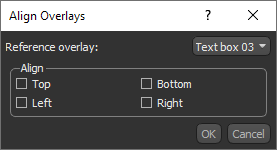
Do the following to align selected overlays:
- Right-click the overlays you want to align in the Data Properties and Settings panel and then choose Align in the pop-up menu.
- Choose a reference overlay in the drop-down menu.
- Check the required alignment(s) — Top, Bottom, Left, Right — that will be applied to the selected overlays.
- Click the OK button.
* Available for multiple selections only.
